Note: See updates 2021-11-23, 2022-02-17 and 2022-06-29 below concerning the use of GraalVM's JDK as an alternative to JDK 17. This is the solution that I am currently using. I'm hoping that this will be of help to others facing similar issues.
I got my new MacBook Pro (M1 Pro) a few days ago, and then set it up by restoring a Time Machine backup from my MacMini (also M1 architecture) and quickly started using my new laptop.
Very soon, I saw that SQL Developer was crashing. Sometimes it would crash immediately, sometimes after a few minutes.
While looking for a solution, I took a look at some of the forum posts on https://community.oracle.com/tech/developers/categories/sql_developer. Most of what I did comes from what I gleaned reading various posts there. 100% of the credit goes to those that contributed in the forum.
I'll spare you all the various different combinations and attempts that I made that didn't work. The following is what actually worked for me.
Download and install JDK 17
I went to the Oracle Java Downloads page at https://www.oracle.com/java/technologies/downloads/
and downloaded the file: jdk-17.0.1_macos-aarch64_bin.dmg

Opened the .dmg and double-clicked on the JDK 17.0.1.pkg installation package to open the installer.

Followed all the steps to install JDK 17.

After the installation, I checked my folder /Library/Java/JavaVirtualMachines to verify that JDK 17 was installed there.

Change the SQL Developer products.conf file to use JDK 17
To make SQL Developer use the new JDK, I needed to locate and edit the products.conf file for my version of SQL Developer. These files are found in the hidden.sqldeveloper directory under your home directory.

As you can see here there are a lot of directories from the various versions of SQL Developer that I've installed and used over the years. My current version is 21.2.1, so this is the directory that I want to change my file in.


I edited the product.conf file using vi and added the following line to make sure that this version of SQL Developer would use the new JDK 17 that I installed. The SetJavaHome entry sets the Java Home to the directory containing this newly installed version.
SetJavaHome /Library/Java/JavaVirtualMachines/jdk-17.0.1.jdk/Contents/Home
This is what that section of my product.conf file looked like after editing.

Start SQL Developer
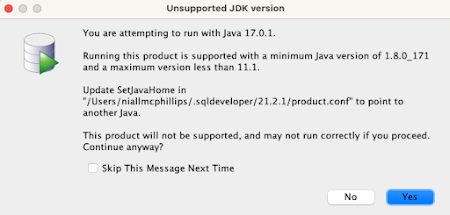


Conclusion
It worked for me. I hope that it works for you or at least gets you moving closer to a solution.
Update 2021-11-23 - using GraalVM's JDK 11 as an alternative JDK
In his SQL Developer community forum post, Philipp Salvisberg suggests using the GraalVM's JDK 11 which can be downloaded here. I have tested his solution and it works for me - even the Welcome Page of SQL Developer works using this method. Thanks Philipp.
sudo xattr -r -d com.apple.quarantine /Library/Java/JavaVirtualMachines/graalvm-ce-java11-21.2.0
Update 2022-02-17 - SQL Developer 21.4.2
SetJavaHome /Library/Java/JavaVirtualMachines/graalvm-ce-java11-21.2.0/Contents/Home
