Showing posts with label oracle. Show all posts

04 June 2024

Reading and writing files on Amazon S3 from Oracle Autonomous Database and PL/SQL

In our mixed cloud environment of AWS and Oracle Autonomous databases, sometimes it's necessary to move files/blobs between the database and AWS S3 storage.  This post describes one way of moving them directly between the database and AWS S3 storage.  

We'll start by setting up an AWS user and user group with the permissions needed.  Then we'll create OCI credentials using PL/SQL and the DBMS_CLOUD package.  Finally, we'll move some image blobs over and back between our Oracle database's PL/SQL environment and AWS S3.


Stage One - create an AWS group, a user and get access keys


Create a User Group and assign the permission policy AmazonS3FullAccess to it.

Using the "User Groups -> Create group" wizard, we'll create a new group called S3FullAccess2024.  We'll also attach the Amazon-supplied policy "AmazonS3FullAccess" to this group


Create an S3 User

Login to your AWS Identity and Access Management (IAM) Console and create a new user.  Let's call this user S3PLSQL.  We'll follow the "Create User" wizard that we'll select from the Users option on the Identity and Access Management menu.


Create user - step 1: User details


Create user - step 2:
Set permissions by adding the user to the S3FullAccess2024 group
 that we created earlier


Create user - step 3: Review and create user


Create user - finished: User created


Create and get your Access Key and Secret Key

Next we'll view the user and create an Access Key.  To keep things as simple as possible for now, we'll select "Other" as our use-case.

Create Access key - step 1: Choose a use-case


Create Access key - step 2: Add an optional description


Create Access key - step 3: Retrieve the access key and secret


Important: Don't forget to make sure that you store your key and secret somewhere, as this will be the only time that you will see it.  If you lose your key later on, you'll have to create a new access key.


Stage Two - create an OCI credential using DBMS_CLOUD

The good news is that it's all in an Oracle environment from here on.  

Firstly, from an admin account, make sure that your database user (in this case "myuser") can execute procedures in the dbms_cloud package.
grant execute on dbms_cloud to myuser;

Connect as myuser and, using the Access Key (created earlier at the end of Stage One) as your username and the Secret Key as your password, create a credential using DBMS_CLOUD.CREATE_CREDENTIAL.  Let's call this credential "s3test_cred".

begin
  dbms_cloud.create_credential
  (credential_name => 's3test_cred',
   username => 'A*****************7U',
   password => 'y*********************************V');
end;
/
Once the above is complete, we now disconnect from the admin user and continue by connecting to the myuser database account


Stage Three - access and update an S3 bucket using PL/SQL and DBMS_CLOUD


Firstly, ensure that we're now connected using the myuser account (or whatever the name we gave to it is).  Using the credential that we've just created, we'll try and list the contents of an existing bucket.  In this case, let's use a pre-created bucket called plsql-s3 containing three image files.

Before we start, we'll just take a quick look at the bucket's contents using S3's web interface.  In this example, we can see that it currently contains 3 jpegs.


Let's start by listing all the files in the bucket using DBMS_CLOUD.LIST_OBJECTS.  This can be done with a simple SQL query.
 
We'll pass two parameters, the credentials that we created in Stage 2 and the path to the S3 bucket that we want to list.

-- list the contents of an S3 bucket
select f.*
  from dbms_cloud.list_objects
         ('s3test_cred'
         ,'https://s3.eu-west-1.amazonaws.com/plsql-s3/') f;

Query output - 3 jpegs


Let's get one of the files and read it into a PL/SQL blob variable using the DBMS_CLOUD.GET_OBJECT function.  We'll then check the length of the retrieved blob, just to show ourselves that the get was successful and that the blob is the same size as the file on S3.

-- read a file from S3 into a blob
set serveroutput on
declare
  l_file blob;
begin

  l_file := 
  dbms_cloud.get_object
    (credential_name => 's3test_cred',
     object_uri      
      => 'https://s3.eu-west-1.amazonaws.com/plsql-s3/Sheep.jpeg');

  dbms_output.put_line
    ('retrieved blob length is: '||dbms_lob.getlength(l_file));
end;
/

retrieved blob length is: 2622899

PL/SQL procedure successfully completed.


Now we'll read the file into a blob and use the DBMS_CLOUD.PUT_OBJECT procedure to write a copy of this file as a new file to S3 using the retrieved blob.

set serveroutput on
declare
  l_file blob;
begin
  -- read the file from S3 into a blob
  l_file := 
  dbms_cloud.get_object
    (credential_name => 's3test_cred',
     object_uri      
      => 'https://s3.eu-west-1.amazonaws.com/plsql-s3/Sheep.jpeg');

  -- using the blob that we read, we'll create a new file on S3
  dbms_cloud.put_object (
    credential_name => 's3test_cred',
    object_uri      
     => 'https://s3.eu-west-1.amazonaws.com/plsql-s3/Sheep2.jpeg',
    contents => l_file);

end;
/

PL/SQL procedure successfully completed.


-- let's check if the new file "Sheep2.jpeg" has been created

select f.*
  from dbms_cloud.list_objects
         ('s3test_cred'
         ,'https://s3.eu-west-1.amazonaws.com/plsql-s3/') f;

Results: 


And, using the AWS web interface to verify the contents of our S3 bucket, we'll see that the new file Sheep2.jpeg is now visible in the bucket.


So now we are using the Oracle DBMS_CLOUD package and its LIST_OBJECTS, GET_OBJECT and PUT_OBJECT procedures to list, read and write from and to AWS S3.  

To follow on from here, we could, for example, load files into an Oracle database table using Oracle APEX and then move them to S3 for permanent storage.  The approach and techniques described above can be used in this and many other similar scenarios.

I hope that this is useful to some of you.  Wishing you lots of fun on your Oracle/AWS journeys!
 

P.S. added by popular demand, here's the Sheep Photo... 🐑

taken on a beautiful summer's day on Achill Island, Co. Mayo, Ireland       
© 2024 Niall Mc Phillips


19 August 2022

Correctly sorting data containing accented characters (a.k.a. the Côte d'Ivoire and Türkiye issue)

This will be short and sweet. Hopefully it will be useful to some of you.

As you may or may not know, the country formerly known as Turkey recently changed its official name to Türkiye , even in English. However, when sorting by country name, it should appear between Tunisia and Turkmenistan rather than later in the list. (Official U.N. sorted list can be found here.)

In the weeks following this change, I was asked on at least five separate occasions to look at sorting issues that arose. Please accept my apologies in advance if you already know what I'm about to write. I thought it was common knowledge, but recent experience has shown otherwise.

Below, I'll explain how I correctly sort by country within Oracle. This technique also applies to any other data (names, etc.) that need to take accented characters into account when sorting. I hope it's useful to some of you.

Note: What comes below applies principally to Latin alphabets. I haven’t tested on non-Latin alphabets, but I suspect a similar approach exists.

First, demonstrating the incorrect sort

This is what some use by default — the problem is that accented characters are sorted after non-accented letters.

So we can see that both Côte d'Ivoire and Türkiye are incorrectly sorted here and are placed after their peers.

SQL> select country_name from vw_temp_countries order by country_name;

COUNTRY_NAME
-------------
Cook Islands
Costa Rica
Croatia
Cuba
Curaçao
Cyprus
Czechia
Côte d'Ivoire
Tunisia
Turkmenistan
Tuvalu
Türkiye

13 rows selected.

Now, a correct sort

With this sort, accented characters are taken into account and sorted appropriately. The Oracle NLSSORT function ensures the correct order. The NLS_SORT parameter is set to swiss, as this setting accommodates most Latin-based languages.

SQL> select country_name 
         from vw_temp_countries
         order by nlssort(country_name, 'NLS_SORT = swiss');

COUNTRY_NAME
-------------
Cook Islands
Costa Rica
Côte d'Ivoire
Croatia
Cuba
Curaçao
Cyprus
Czechia
Tunisia
Türkiye
Turkmenistan
Tuvalu

13 rows selected.

That's it — as promised, short and sweet! 😀

19 November 2021

How I got SQL Developer working on a new MacBook Pro (MacOS Monterey - M1 Pro)


Note: See updates 2021-11-23, 2022-02-17 and 2022-06-29 below concerning the use of GraalVM's JDK as an alternative to JDK 17. This is the solution that I am currently using.
I'm hoping that this will be of help to others facing similar issues.

I got my new MacBook Pro (M1 Pro) a few days ago, and then set it up by restoring a Time Machine backup from my MacMini (also M1 architecture) and quickly started using my new laptop.

Very soon, I saw that SQL Developer was crashing. Sometimes it would crash immediately, sometimes after a few minutes.

While looking for a solution, I took a look at some of the forum posts on https://community.oracle.com/tech/developers/categories/sql_developer. Most of what I did comes from what I gleaned reading various posts there. 100% of the credit goes to those that contributed in the forum.

I'll spare you all the various different combinations and attempts that I made that didn't work. The following is what actually worked for me.


Download and install JDK 17

I went to the Oracle Java Downloads page at https://www.oracle.com/java/technologies/downloads/

and downloaded the file: jdk-17.0.1_macos-aarch64_bin.dmg


Opened the .dmg and double-clicked on the JDK 17.0.1.pkg installation package to open the installer.


Followed all the steps to install JDK 17.


After the installation, I checked my folder /Library/Java/JavaVirtualMachines to verify that JDK 17 was installed there.


Change the SQL Developer products.conf file to use JDK 17

To make SQL Developer use the new JDK, I needed to locate and edit the products.conf file for my version of SQL Developer.  These files are found in the hidden.sqldeveloper directory under your home directory.


As you can see here there are a lot of directories from the various versions of SQL Developer that I've installed and used over the years.  My current version is 21.2.1, so this is the directory that I want to change my file in.


I edited the product.conf file using vi and added the following line to make sure that this version of SQL Developer would use the new JDK 17 that I installed.  The SetJavaHome entry sets the Java Home to the directory containing this newly installed version.

SetJavaHome /Library/Java/JavaVirtualMachines/jdk-17.0.1.jdk/Contents/Home


This is what that section of my product.conf file looked like after editing.


Start SQL Developer

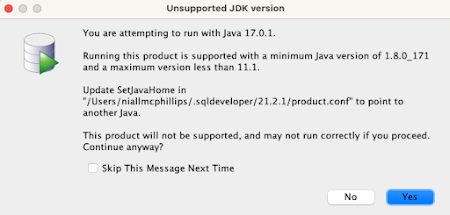
When starting SQL Developer, I get an "Unsupported JDK version" page that immediately pops up.  I choose to ignore this warning and click on "Yes" to continue anyway.


The next message that I get concerns JavaFX. 


I was a little worried when I first saw this JavaFX pop-up, but then I read Jeff Smith's post from last November which was reassuring.  According to Jeff, JavaFX is only used in a few screens within SQL Developer, and I can certainly live with this issue for now.


Conclusion

So that's it.  I have a working version of SQL Developer on my MacBook Pro.
It worked for me.  I hope that it works for you or at least gets you moving closer to a solution.

Happy Developing!


Update 2021-11-23 - using GraalVM's JDK 11 as an alternative JDK

In his SQL Developer community forum post, Philipp Salvisberg suggests using the GraalVM's JDK 11 which can be downloaded here.  I have tested his solution and it works for me - even the Welcome Page of SQL Developer works using this method.  Thanks Philipp.


Note: I had to remove the quarantine attribute with the following command: 

sudo xattr -r -d com.apple.quarantine /Library/Java/JavaVirtualMachines/graalvm-ce-java11-21.2.0


Update 2022-02-17 - SQL Developer 21.4.2

I have just upgraded to 21.4.2.  I once again edited the product.conf file to point to the GraalVM JDK.  Works just fine for now.

SetJavaHome /Library/Java/JavaVirtualMachines/graalvm-ce-java11-21.2.0/Contents/Home


Update 2022-06-29 - SQL Developer 22.2.0

I have just upgraded to 22.2.0.  Works fine.  No issues to report for now.

23 January 2021

Making XML tags dynamic in SQL and PL/SQL

While trying to produce XML using Oracle's native XML functions, I needed some of the XML tags to be dynamic.  To simplify and illustrate the problem that I encountered, I'll show an example that uses the time-tested, traditional EMP and DEPT tables.  

Let's say that we need to produce something like this for all departments.

<departments> <accounting> <employee>Clark</employee> <employee>King</employee> <employee>Miller</employee> </accounting> ... </departments>


Let's start with a short SQL to get an aggregated employee list for each department.  The result is four rows of xmltype - one for each department

select xmlelement("department", xmlagg(xmlelement("employee", initcap(e.ename)))) from dept d left outer join emp e on (e.deptno = d.deptno) group by d.deptno;

Result (4 rows):

<department> <employee>King</employee> <employee>Miller</employee> <employee>Clark</employee> </department>

<department> <employee>Jones</employee> <employee>Adams</employee> <employee>Smith</employee> <employee>Ford</employee> <employee>Scott</employee> </department>

<department> <employee>Blake</employee> <employee>James</employee> <employee>Turner</employee> <employee>Martin</employee> <employee>Ward</employee> <employee>Allen</employee> </department>

<department> <employee></employee> </department>


Next we'll aggregate these inside a single outer tag called "departments"


select xmlelement("departments", xmlagg( xmlelement("department", xmlagg(xmlelement("employee", initcap(ename)))))) from dept d left outer join emp e on (e.deptno = d.deptno) group by d.deptno, d.dname;

Result:

<departments> <department> <employee>King</employee> <employee>Miller</employee> <employee>Clark</employee> </department> <department> <employee>Jones</employee> <employee>Adams</employee> <employee>Smith</employee> <employee>Ford</employee> <employee>Scott</employee> </department> <department> <employee>Blake</employee> <employee>James</employee> <employee>Turner</employee> <employee>Martin</employee> <employee>Ward</employee> <employee>Allen</employee> </department> <department> <employee></employee> </department> </departments>


Now we'll try to change the <department> tag to have the value of the actual department name by replacing xmlelement("department",  with xmlelement(dname,   and we'll see that the value of dname doesn't appear


select xmlelement("departments", xmlagg( xmlelement(dname, xmlagg(xmlelement("employee", initcap(ename)))))) from dept d left outer join emp e on (e.deptno = d.deptno) group by d.deptno, d.dname;

Result:

<departments> <DNAME> <employee>King</employee> <employee>Miller</employee> <employee>Clark</employee> </DNAME> <DNAME> <employee>Jones</employee> <employee>Adams</employee> <employee>Smith</employee> <employee>Ford</employee> <employee>Scott</employee> </DNAME> <DNAME> <employee>Blake</employee> <employee>James</employee> <employee>Turner</employee> <employee>Martin</employee> <employee>Ward</employee> <employee>Allen</employee> </DNAME> <DNAME> <employee></employee> </DNAME> </departments>

So, as we can see, the value of the dname column has not been interpreted and used for the tag.  The query is simply using the string DNAME instead.   The problem now becomes "how can we force our query to use the value of dname as an XML tag?"

And, of course, Oracle have given us a solution - the evalname keyword will tell the query that the expression following it is to be evaluated and that the result of that evaluation should be used as the XML tag.  Armed with this knowledge, we'll now make a small change to the query


select xmlelement("departments", xmlagg( xmlelement(evalname lower(dname), xmlagg(xmlelement("employee", initcap(ename)))))) from dept d left outer join emp e on (e.deptno = d.deptno) group by d.deptno, d.dname;

Result:

<departments> <accounting> <employee>King</employee> <employee>Miller</employee> <employee>Clark</employee> </accounting> <research> <employee>Jones</employee> <employee>Adams</employee> <employee>Smith</employee> <employee>Ford</employee> <employee>Scott</employee> </research> <sales> <employee>Blake</employee> <employee>James</employee> <employee>Turner</employee> <employee>Martin</employee> <employee>Ward</employee> <employee>Allen</employee> </sales> <operations> <employee></employee> </operations> </departments>

So, as we can see, the value of the expression following the evalname keyword has been used as the XML tag.

Of course, the above example is a simple example to illustrate the use of evalname.
The actual problem that I was solving involved calculating multiple tag values according to a reasonably complex piece of business logic that was implemented via PL/SQL packages.  These tag values were then passed as parameters to the procedure generating the XML.  From there it was easy to just use evalname parameter_name for the dynamic tag names.

The above was run and tested on the Oracle Autonomous Database Cloud using an "Always Free" database that is running database version 19c at the time of writing.

I hope that this is useful for some of you.  Happy XMLing with SQL and PL/SQL!


15 September 2020

Making SQL Developer's UI use your preferred language

Recently I was using Oracle's SQL Developer at a client site where all the virtual PCs were configured for a non-English language and my SQL Developer was choosing this language by default for the User Interface.

I'm so used to working with SQL Developer in English that I found it a little distracting to read the menu options, etc. in a different language - even if it's a language that I use on a daily basis.

After a short time searching online I came across this quick fix written by Matthias Karl Schulz in 2011 - and it is essentially still valid today in SQL Developer 20.2.  

To summarise, here's what you need to do:

  1. Find the sqldeveloper.conf file inside your SQL Developer installation. 

    On a PC I found this at
    ...sqldeveloper\sqldeveloper\bin\sqldeveloper.conf

    On MacOS it's at /Applications/SQLDeveloper.app/Contents/Resources/sqldeveloper/sqldeveloper/bin/sqldeveloper.conf
    (Note: On MacOS you should right click on the SQLDeveloper.app file and choose "Show Package Contents" to open these directories.)

  2. For English, just add the following line to the file.  For other languages, you can replace the "=en" by the ISO 639-1 two-letter code for whichever language you wish to force SQL Developer to use.  I've tried German (de) and Spanish (es) just to see how it looks and it works just fine.

    AddVMOption -Duser.language=en

  3. Save the file

  4. Close SQL Developer if it is already open

  5. Restart SQL Developer. 
And there you have it, SQL Developer will now open in the language of your choice.  
Not all languages are available.  For example, I tried the Irish language ("ga" in ISO 639-1) but, as I expected, it wasn't available (yet).